Practice Thai consonants, vowels, numbers, marks and symbols in a compact Windows 11 desktop app.
Study, listen, play, and review your progress. Choose TLTA, RTGS, IPA, or Paiboon pronunciation guides, and explore the included handwriting font and compatible installed Thai fonts.
If you used the earlier portable preview, back up your learning data in Settings → History → Back Up All Data before switching. Close the preview and remove its extracted app folder and any shortcuts you created. Your learning data is stored separately.
Uninstall instructions
Open Windows Settings → Apps → Installed apps, find Tim’s Learn the Thai Alphabet, and choose Uninstall from its menu. To keep a copy of your settings and learning history, use Back Up All Data before uninstalling.
Choose what and how you practice
Focus on one content type, or choose All Content Types in Study Cards, Whack-a-Mole, or Quiz to combine consonants, vowels, numbers, and Marks & Symbols.
A custom Thai handwriting font is included in the app. Use it alongside compatible installed Thai fonts to become familiar with handwritten as well as printed letterforms. It is available across study, games, quizzes, and charts, with no separate font installation.
New to the writing system? Start with Reference Charts for the big picture, then try Study Cards, Whack-a-Mole, and Quiz. This is a suggested path; you can start anywhere and return to any activity.
Several ways to learn
Screenshots show the Windows version with example practice data. Select a screenshot to enlarge it.
Study Cards
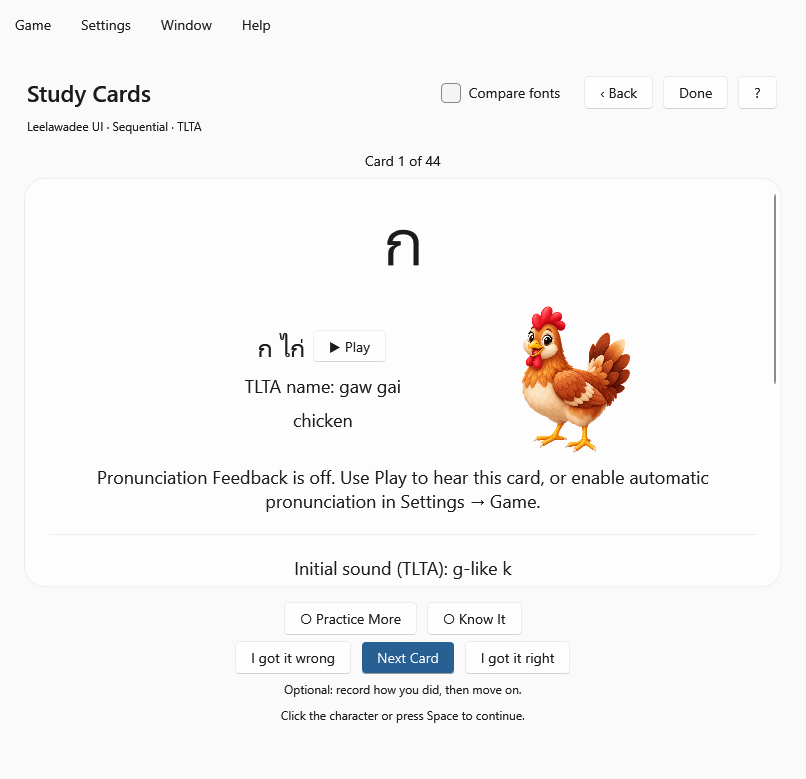
Explore all 44 Thai consonants, 32 traditional vowel forms, 290 Thai numbers, and 15 Marks & Symbols at your own pace. Reveal recordings, useful details, and available illustrations. Choose 10, 20, 30, 50, or all available cards per session, and use Practice More or Know It to guide your review. Finish with a session summary, study again, or revisit cards you reported missing.
Study Cards · Select to enlarge
Whack-a-Mole
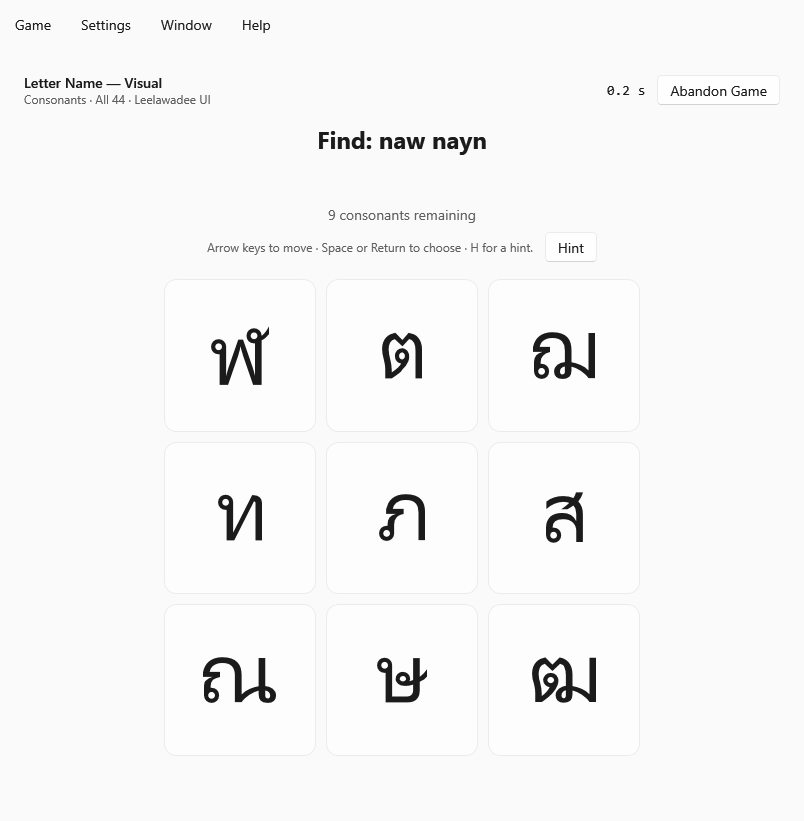
Practice written-name and listening recognition for consonants, vowels, numbers, and Marks & Symbols on compact desktop grids. Marks & Symbols on its own uses 2×2 or 3×3 boards. Other exercises explore consonant classes, sound relationships, and similar shapes.
Whack-a-Mole · Select to enlarge
Quizzes
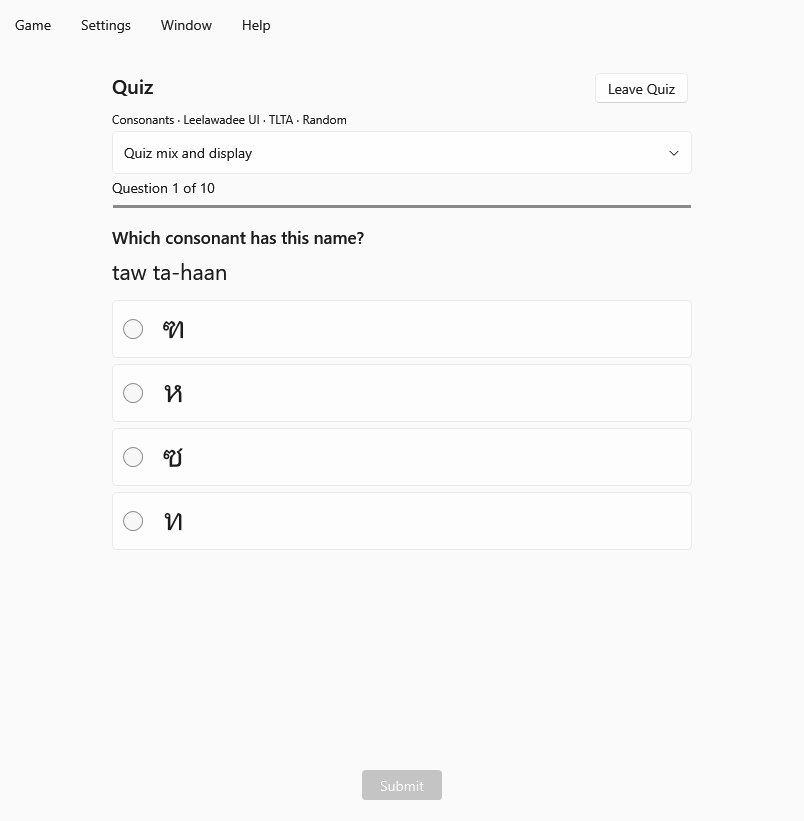
Check your recognition of consonants, vowels, numbers, and Marks & Symbols with multiple-choice questions and recorded names. Answer without speed pressure, see feedback after each answer, and review mistakes afterward.
Quizzes · Select to enlarge
Reference Charts
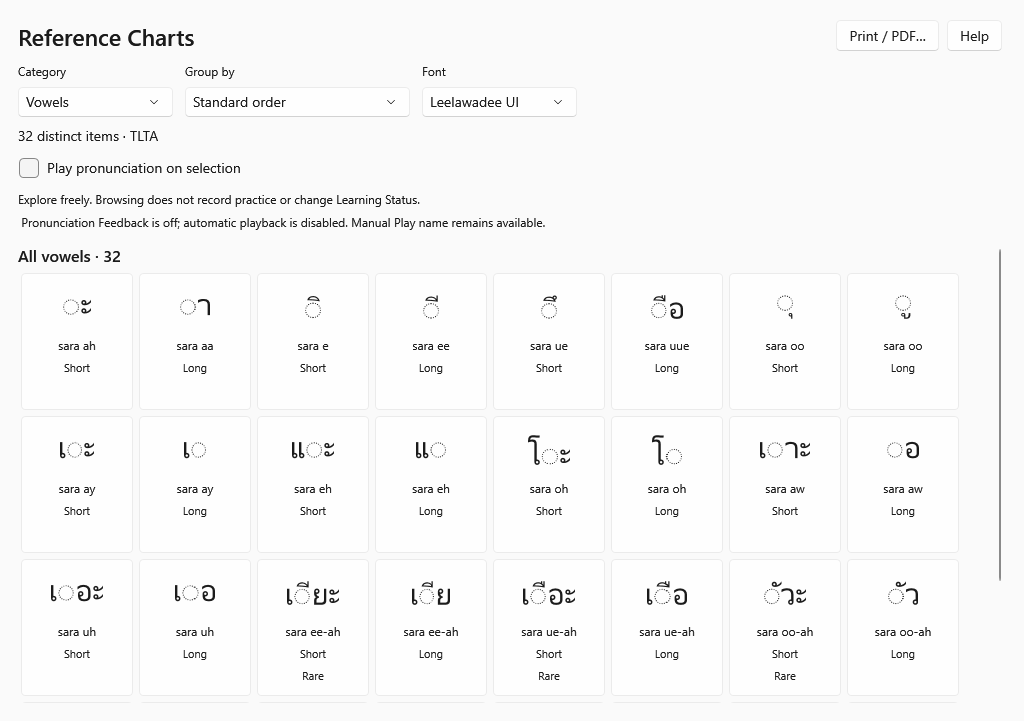
Browse consonants, vowel forms, selected number sets, and all 15 Marks & Symbols. Explore the signs’ names, purposes, placement, and usage examples. Choose groupings and fonts, open details, listen to recordings, and print or save charts as PDFs.
Reference Charts · Select to enlarge
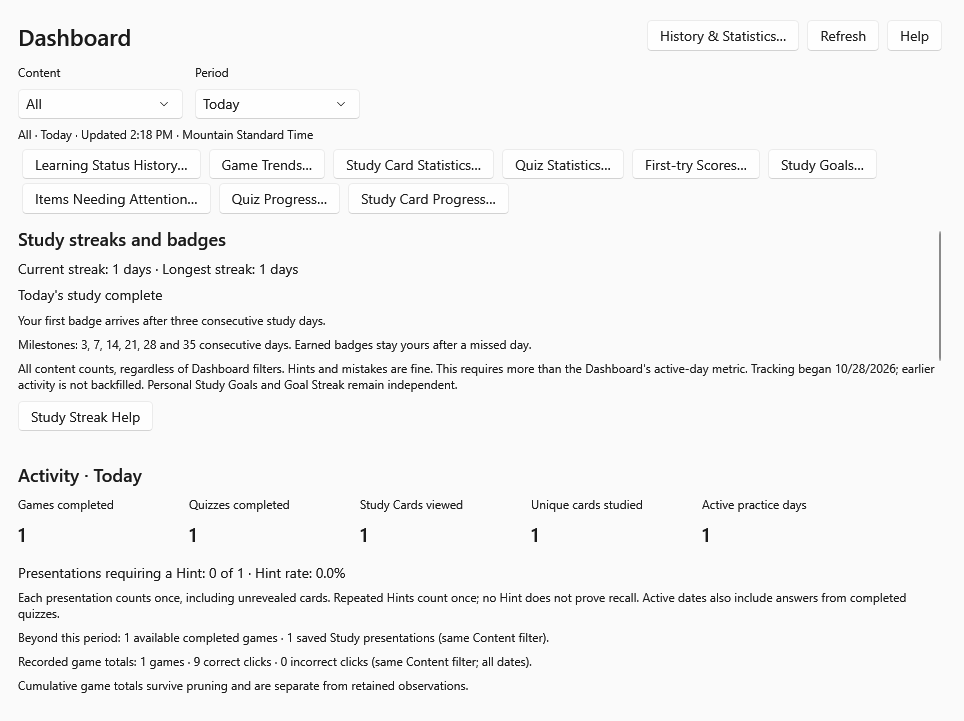
Dashboard
Review your activity, Learning Status, study goals, streaks, and badges. Open focused reports to see patterns and items that need attention.
Dashboard · Select to enlarge
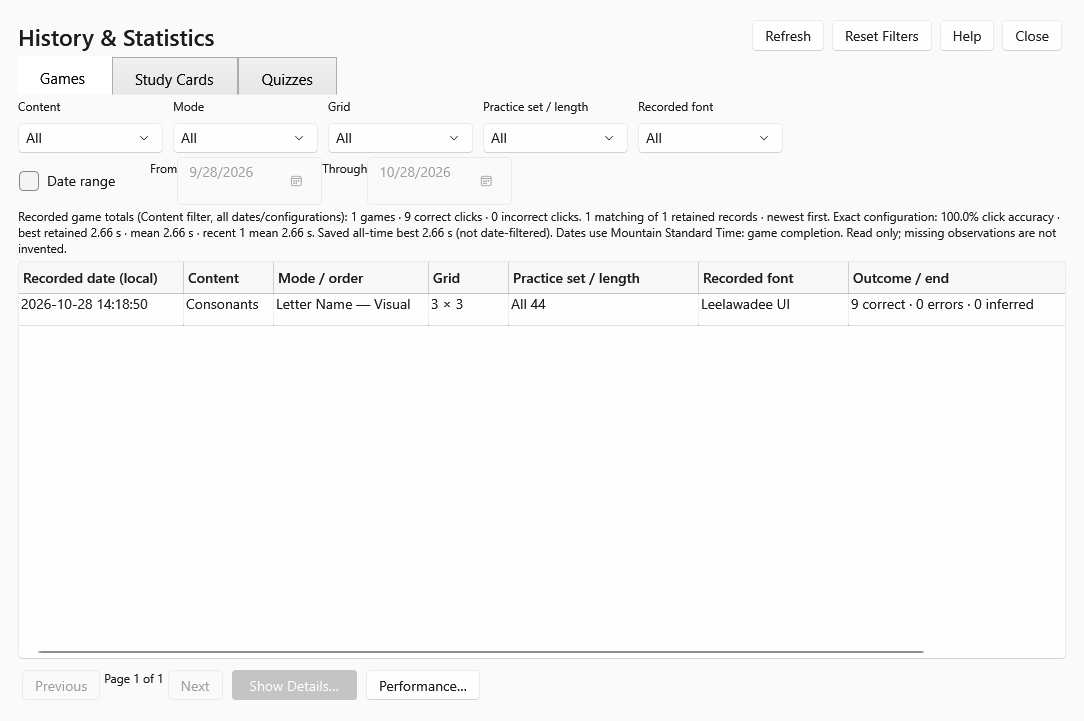
History & Statistics
Browse saved games, Study Card activity, and Quiz results. Use filters and reports to review your own practice over time.
History & Statistics · Select to enlarge
Windows Help and support
Built-in illustrated Help
Use the app’s Help menu or a question-mark button. The native Windows Help viewer, illustrations, and search are included and work offline. Practice Tips and the guided tour help you get started.
No audio
Open Settings → Game → Audio and use Test Audio. Check Game Volume and Windows’ selected output. Keep HDMI audio active is an optional workaround for receivers that clip short recordings; it cannot repair a disconnected Windows audio device.
A Thai character looks wrong
Compare it using Leelawadee UI, if available, and review compatible fonts in Settings → Fonts. After installing a font, close and reopen the app so it can check the updated installed-font list.
No usable Thai font is available
Wassana Thai Handwriting is included and normally works without an installed Thai font. You can also download Noto Sans Thai Looped from Google Fonts and follow Microsoft’s font-installation instructions. After installing a font, close and reopen the app so it can detect and check the new font. Windows normally does not need restarting. Fonts are never downloaded or installed automatically.
Help opens without its pages
Close and reopen the app. If Help still opens blank, contact support and include your app version and Windows version.
A report or practice button is unavailable
Check the report’s filters and evidence requirements. Some reports and trouble-practice options need enough completed practice before they become available.
For help, contact support with the app version, Windows version, x64 or ARM64, and what happened. You do not need to send learning-history files for an initial report.
Backups stay on the same platform
Settings → History offers Back Up All Data and Restore Backup. Restoring a complete Windows backup replaces the destination’s saved data and settings; it does not merge histories. The app creates a recovery backup first.
Cross-platform restores are not supported. Apple backups cannot be restored on Windows, and Windows backups cannot be restored on Apple devices. History exports for analysis are not restorable backups.
Free to use, with your progress kept on your PC
No account, advertising, subscriptions, or in-app purchases. Learning history and settings stay local; they are not automatically sent to the developer. Practice, recordings, charts, and Help work offline.